
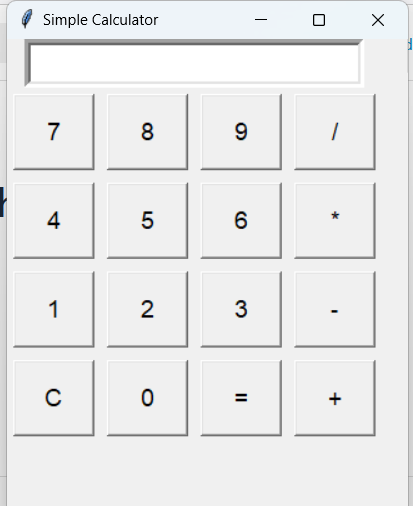
Features
- Entry Field: Displays the current input and result.
- Buttons: Includes digits (0-9), arithmetic operators (
+,-,*,/), clear button (C), and equals (=) for evaluation. - Error Handling: Displays “Error” for invalid input or calculations.
How to Use
- Copy and paste the code into a Python file, e.g.,
calculator.py. - Run the file using Python (
python calculator.py). - Use the buttons to perform arithmetic operations.
This is a great starting point, and you can enhance it further by adding more features like scientific functions, memory storage, or a better UI.
Here’s a simple calculator program using Python’s Tkinter library. This program supports basic arithmetic operations: addition, subtraction, multiplication, and division.
import tkinter as tk

# Function to handle button clicks
def on_click(button_text):
    if button_text == "C":
        entry.delete(0, tk.END)
    elif button_text == "=":
        try:
            result = eval(entry.get())
            entry.delete(0, tk.END)
            entry.insert(tk.END, str(result))
        except Exception as e:
            entry.delete(0, tk.END)
            entry.insert(tk.END, "Error")
    else:
        entry.insert(tk.END, button_text)

# Create the main window
root = tk.Tk()
root.title("Simple Calculator")

# Entry widget for the input and result display
entry = tk.Entry(root, width=20, font=("Arial", 18), borderwidth=5, justify='right')
entry.grid(row=0, column=0, columnspan=4)

# Define the button layout
buttons = [
    "7", "8", "9", "/",
    "4", "5", "6", "*",
    "1", "2", "3", "-",
    "C", "0", "=", "+"
]

# Add buttons to the grid
row_value = 1
col_value = 0
for button_text in buttons:
    button = tk.Button(root, text=button_text, width=5, height=2, font=("Arial", 14),
                       command=lambda text=button_text: on_click(text))
    button.grid(row=row_value, column=col_value, padx=5, pady=5)
    col_value += 1
    if col_value > 3:
        col_value = 0
        row_value += 1

# Run the main event loop
root.mainloop()
Here’s a line-by-line explanation of the tkinter calculator program:
import tkinter as tk
- Purpose: Import the
tkinterlibrary for building GUI applications in Python. tkis used as an alias for easier access totkinterfunctions and classes.
def on_click(button_text):
- Purpose: Define a function to handle button clicks.
button_textrepresents the label (e.g., “1”, “+”, “=”) of the button that was clicked.
    if button_text == "C":
        entry.delete(0, tk.END)
- Purpose: If the “C” button is clicked, clear the entire text in the
entrywidget. entry.delete(0, tk.END)removes text from index0to the end.
    elif button_text == "=":
        try:
            result = eval(entry.get())
            entry.delete(0, tk.END)
            entry.insert(tk.END, str(result))
- Purpose: If the “=” button is clicked:
- Use the
eval()function to evaluate the mathematical expression entered in theentrywidget. - Clear the current text in the
entrywidget and display the result. - Wrap this in a
tryblock to handle potential errors (e.g., invalid input like5++2).
- Use the
        except Exception as e:
            entry.delete(0, tk.END)
            entry.insert(tk.END, "Error")
- Purpose: If an error occurs during evaluation (e.g., invalid expression), clear the
entryand display “Error”.
    else:
        entry.insert(tk.END, button_text)
- Purpose: For any other button (numbers or operators), append its text to the current entry.
root = tk.Tk()
root.title("Simple Calculator")
- Purpose: Create the main application window (
root) and set its title to “Simple Calculator”.
entry = tk.Entry(root, width=20, font=("Arial", 18), borderwidth=5, justify='right')
entry.grid(row=0, column=0, columnspan=4)
- Purpose: Create an input field (
entry) for user input and displaying results.width=20: Specifies the width of the input field.font=("Arial", 18): Sets the font and size.borderwidth=5: Adds a border around the field.justify='right': Aligns the text to the right.grid(row=0, column=0, columnspan=4): Positions the widget in the first row and spans it across 4 columns.
buttons = [
    "7", "8", "9", "/",
    "4", "5", "6", "*",
    "1", "2", "3", "-",
    "C", "0", "=", "+"
]
- Purpose: Define the layout of calculator buttons in a list, arranged row by row.
row_value = 1
col_value = 0
- Purpose: Initialize the row and column positions for placing buttons in the grid.
for button_text in buttons:
    button = tk.Button(root, text=button_text, width=5, height=2, font=("Arial", 14),
                       command=lambda text=button_text: on_click(text))
    button.grid(row=row_value, column=col_value, padx=5, pady=5)
    col_value += 1
    if col_value > 3:
        col_value = 0
        row_value += 1
- Purpose:
- Loop through the
buttonslist to create a button for each item. tk.Button(...): Create a button widget with specified properties:text=button_text: Label the button.widthandheight: Set button size.font: Specify font style and size.command: Assign theon_clickfunction, passing the button’s label.
grid(row=row_value, column=col_value, padx=5, pady=5): Place the button in the grid, adding padding for spacing.- Increment the
col_valuefor each button. If the column exceeds 3, reset it to 0 and move to the next row.
- Loop through the
root.mainloop()
- Purpose: Start the main event loop, which listens for user interactions and updates the GUI accordingly.
Summary
- Input Field (
entry): Displays the input and output. - Buttons: Each button is created dynamically using a loop and added to the grid.
- Button Logic: Depending on the button clicked, the program performs actions like clearing input, evaluating expressions, or appending characters.
- Error Handling: Ensures invalid input doesn’t crash the program.
This program demonstrates the basics of creating interactive GUI applications with tkinter.