
When preparing for PL-300, knowing how Power Query M functions work can save you from tricky exam traps. This one’s about List.Dates, which is commonly used to generate a sequence of dates for time intelligence.
📌 Question:
You have the following M formula:
= List.Dates(#date(2020,05,31), 365, #duration(1,0,0,0))
What is the resulting date range?
- A list of days ending on May 31, 2020 and starting 365 days earlier
- A list of days starting on May 31, 2020 and ending 365 days later
- A list of months ending in May 2020 and starting 12 months earlier
- A list of months starting in May 2020 and ending 12 months later
✅ Correct Answer:
2. A list of days starting on May 31, 2020 and ending 365 days later
🧠 Why This is the Correct Answer:
The syntax of List.Dates is:
List.Dates(start as date, count as number, step as duration)
#date(2020,05,31)→ Start date = May 31, 2020365→ Number of dates to generate = 365 dates#duration(1,0,0,0)→ Step = 1 day
This means:
- First date: May 31, 2020
- Last date: May 31, 2020 + 364 days = May 30, 2021
💡 It does not go backwards in time unless the step is negative.
🚫 Why the Other Options Are Wrong:
1. Ending on May 31, 2020 and starting 365 days earlier
- Wrong direction — start date is given first, and the step is positive.
3 & 4. List of months
List.Datesgenerates dates, not months. To generate months, you’d need#duration(30,0,0,0)or use a month-based function.
📌 Tip for the Exam:
If you see List.Dates:
- Positive duration → forward in time
- Negative duration → backward in time
- Count = total number of elements, not number of steps
If we have 4 Rows in a table, this will be expected result
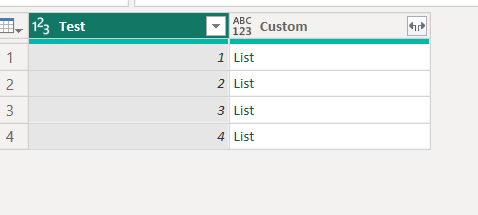
List.Dates creates a list of 365 date values for each row, so you’re seeing "List" in the column because Power Query doesn’t automatically expand lists.
If you want to actually see each date as its own row instead of “List”:
- Click the small expand icon in the column header of
Custom. - Choose Expand to New Rows.
- This will “flatten” the list so each date is on its own row.
- You’ll now have 365 × 4 = 1,460 rows (because you had 4 starting rows).
If you only want one date list (not repeated for every row in Test), then you should create the list outside of Table.AddColumn — otherwise it’s generated separately for each row.
For a Table with these dates
let
    StartDate = #date(2020, 05, 31),
    DayCount = 365,
    DateList = List.Dates(StartDate, DayCount, #duration(1,0,0,0)),
    DateTable = Table.FromList(DateList, Splitter.SplitByNothing(), {"Date"})
in
    DateTable