
Learn How to Copy Dance Motion from a Video to an Image Using AI in this First Order Motion Model Tutorial
Introduction
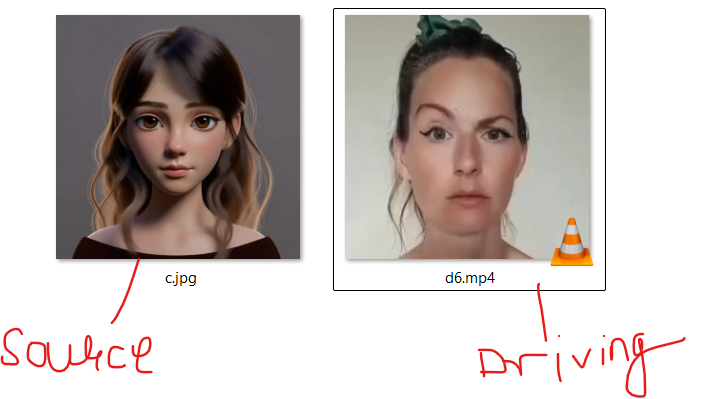
Motion transfer using AI has opened exciting possibilities in video creation, animation, and digital content. With the First Order Motion Model, you can take the motion from a driving video—such as a dance performance—and apply it to a single image, creating a realistic animated video.
This tutorial explains how to set up and run a CLI-based motion transfer system on Windows, using a driving video and a source image. The method works locally, supports GPU acceleration, and is ideal for creators who want repeatable, automated results without relying on cloud tools or paid software.
By the end of this guide, you’ll be able to generate dance-style animations from any image using your own system.
What You Need
Before starting, make sure you have:
- Windows system
- Python 3.8+
- NVIDIA GPU with CUDA (recommended)
- A driving video (e.g., a dance clip)
- A source image (clear face, front-facing works best)
- First Order Motion Model project set up
- Pretrained checkpoint file:
vox-cpk.pth.tar
Project Structure Overview
Your project folder should look like this:
first-order-model/
│
├── checkpoints/
│   └── vox-cpk.pth.tar
├── config/
│   └── vox-256.yaml
├── venv/
├── demo.py
├── animate.py
└── inputs/
    ├── source.jpg
    └── driving.mp4
Download vox-cpk.pth.tar here https://github.com/graphemecluster/first-order-model-demo/releases
System Requirements
- Windows 10 or Windows 11 (64-bit)
- Python 3.8 – 3.10 (Python 3.9 recommended)
- NVIDIA GPU with CUDA support (GTX 1660 / RTX 2060 / RTX 3060 or higher)
- Minimum 8 GB RAM (16 GB recommended)
- At least 10 GB free disk space
⚠️ CPU-only execution is technically possible but extremely slow and not recommended.
Step 0: Install Python
- Download Python from the official website:
https://www.python.org/downloads/ - During installation:
- ✅ Check “Add Python to PATH”
- Choose Python 3.9.x
- Verify installation:
python --version
Expected output:
Python 3.9.x
Step 0.1: Verify NVIDIA GPU & CUDA Support
Check if your GPU is detected:
nvidia-smi
If you see GPU details and CUDA version, you’re good to go.
Step 0.1.1: Install Git (Required)
Git is required to download (clone) the First Order Motion Model repository.
Without Git, nothing works.
Install Git on Windows
- Download Git from the official site:
👉 https://git-scm.com/download/win - Run the installer and keep default settings.
- When asked about PATH → choose “Git from the command line and also from 3rd-party software”
- Finish installation.
Verify Git Installation
Open Command Prompt and run:
git --version
Expected output:
git version 2.xx.x
If you see this, Git is installed correctly ✅
🔒 Important Rule (Tattoo This)
Install Git ONCE → Use it forever
You do NOT install Git per project.
Step 0.2: Create Project Folder
Create and move into your project directory:
D:
mkdir motion_ai
cd motion_ai
Clone the First Order Motion Model repository inside this folder:
git clone https://github.com/AliaksandrSiarohin/first-order-model.git
cd first-order-model
Step 0.3: Create a Virtual Environment (MANDATORY)
Creating a virtual environment prevents dependency conflicts and keeps your system clean.
python -m venv venv

venv\Scripts\activate

(venv) D:\motion_ai\first-order-model>
This will create a venv folder inside the project directory.
Step 0.4: Install PyTorch (GPU Version)
⚠️ This step must be done inside the virtual environment.
The First Order Motion Model is not compatible with PyTorch 2.x, so we use a stable version.
pip install torch==1.12.1+cu116 torchvision==0.13.1+cu116 --extra-index-url https://download.pytorch.org/whl/cu116
Verify installation:
python -c "import torch; print(torch.__version__); print(torch.cuda.is_available())"
Expected output:
1.12.1+cu116
True
Step 0.5: Install Remaining Dependencies
Install all required libraries without overwriting PyTorch:
pip install -r requirements.txt --no-deps
✅
Step 1: Activate the Virtual Environment
Always activate the virtual environment before running the project:
cd D:\motion_ai\first-order-model
venv\Scripts\activate
You should see (venv) in your terminal.
Step 2: Verify GPU Support (Optional but Recommended)
python -c "import torch; print(torch.__version__, torch.cuda.is_available())"
Expected output:
1.12.1+cu116 True
Step 3: Prepare Inputs
- Place your image in
inputs/source.jpg - Place your motion video in
inputs/driving.mp4
Tips:
- The driving video controls motion (dance, head movement, gestures)
- The image controls appearance (face, identity)
Step 4: Run Motion Transfer
Execute the following command:
python demo.py ^
 --config config/vox-256.yaml ^
 --driving_video inputs/driving.mp4 ^
 --source_image inputs/source.jpg ^
 --checkpoint checkpoints/vox-cpk.pth.tar ^
 --result_video outputs/result.mp4 ^
 --relative ^
 --adapt_scale
Step 5: View the Result
Once processing finishes, your animated video will be saved as:
outputs/result.mp4
The source image will now follow the full motion and expressions from the driving video.
How It Works (Simple Explanation)
- The model detects key motion points from the driving video
- It extracts appearance features from the source image
- Motion is transferred frame-by-frame
- The final video blends identity + motion smoothly
This approach copies motion, not identity—making it perfect for dance and gesture animation.
Performance Notes
- Works on CPU, but very slow
- GPU recommended for practical use
- Longer videos = longer render time
- Best results with clear, well-lit videos
Use Cases
- AI dance videos
- Avatar animation
- Content creation for reels/shorts
- Virtual influencers
- Experimenting with motion AI pipelines
Conclusion
Using the First Order Motion Model, you can build a powerful local AI system that transfers motion from any video to an image—without cloud dependency or paid tools. This CLI-based approach is stable, repeatable, and ideal for building larger automation pipelines in the future.
You’ve now created the foundation for AI-driven motion animation.
Where Can This Motion Transfer AI Be Used? (10 Practical Use Cases)
AI-based motion transfer is not just a technical experiment—it has strong real-world value across marketing, media, education, and automation. Below are ten practical ways this technology can be used effectively.
1. Social Media Content Creation
Motion transfer is perfect for creating short-form videos for platforms like Instagram Reels, YouTube Shorts, and TikTok. A single image can be animated into multiple dance or expression videos, allowing creators to generate high-engagement content without recording new footage every time.
2. Influencer & Avatar Marketing
Brands can create virtual influencers using a single face image and multiple motion videos. This allows consistent brand representation without relying on real influencers for every shoot. Motion styles can be changed while keeping the same digital identity.
3. Personalized Video Ads
Marketing teams can generate personalized ads by swapping face images while keeping the same motion and script. This is extremely useful for regional campaigns, A/B testing creatives, or running hyper-personalized ad funnels at scale.
4. Content Repurposing at Scale
One dance or performance video can be reused across hundreds of images. This drastically reduces production costs while increasing content volume. Agencies can reuse motion templates for multiple clients with different branding.
5. Educational & Training Content
Teachers and trainers can animate characters or instructors using motion videos. This makes lessons more engaging without repeated filming. Educational avatars can deliver content consistently across different languages and courses.
6. AI Characters for Apps & Websites
Developers can integrate animated avatars into websites, apps, or dashboards. These avatars can guide users, explain features, or act as interactive assistants using pre-defined motion patterns.
7. Entertainment & Fan Content
Fans can animate images of characters, celebrities, or artwork using dance or acting videos. This opens opportunities in fan art, remix culture, and creative storytelling without advanced animation skills.
8. Local Business Promotions
Small businesses can create professional-looking promo videos using just an image and a generic motion clip. This lowers the barrier for video marketing for shops, coaches, gyms, and service providers.
9. Automation Pipelines & SaaS Products
This system can be turned into a backend service where users upload an image and a video, and receive an animated output. It’s ideal for building AI tools, internal automation systems, or subscription-based services.
10. Research & AI Experimentation
For developers and researchers, this model is a foundation for experimenting with motion learning, human pose transfer, and generative animation. It can be extended to full-body motion, real-time systems, or multi-person animation.
Why This Approach Is Powerful
- No repeated filming required
- One-time setup, unlimited outputs
- Fully local and controllable
- Works offline
- Ideal for automation
This makes it especially attractive for digital marketing teams, agencies, and AI builders.
Final Thought
Motion transfer AI bridges the gap between static visuals and dynamic storytelling. With the right pipeline, a single image can become a reusable, animated digital asset across marketing, education, and entertainment.
You’re not just copying motion—you’re multiplying creativity.
Disclaimer
This tutorial and project are provided strictly for educational, research, and creative experimentation purposes. The motion transfer and face animation techniques discussed here are intended to demonstrate the capabilities of modern AI and computer vision models.
Users are solely responsible for how they use this technology. It must not be used to impersonate individuals, spread misinformation, violate privacy, infringe copyrights, or create misleading or harmful content. Always obtain proper consent when using real human images or videos, especially for commercial, promotional, or public-facing applications.
The author does not endorse or support misuse of this technology for unethical, illegal, or deceptive purposes. By implementing or modifying this system, you agree to comply with all applicable laws, platform policies, and ethical standards in your region.
Use responsibly. Build creatively. Respect boundaries.