
by Ankit Srivastava (Lead Digital Marketing Analyst & Head — IT Training, Slidescope Institute)
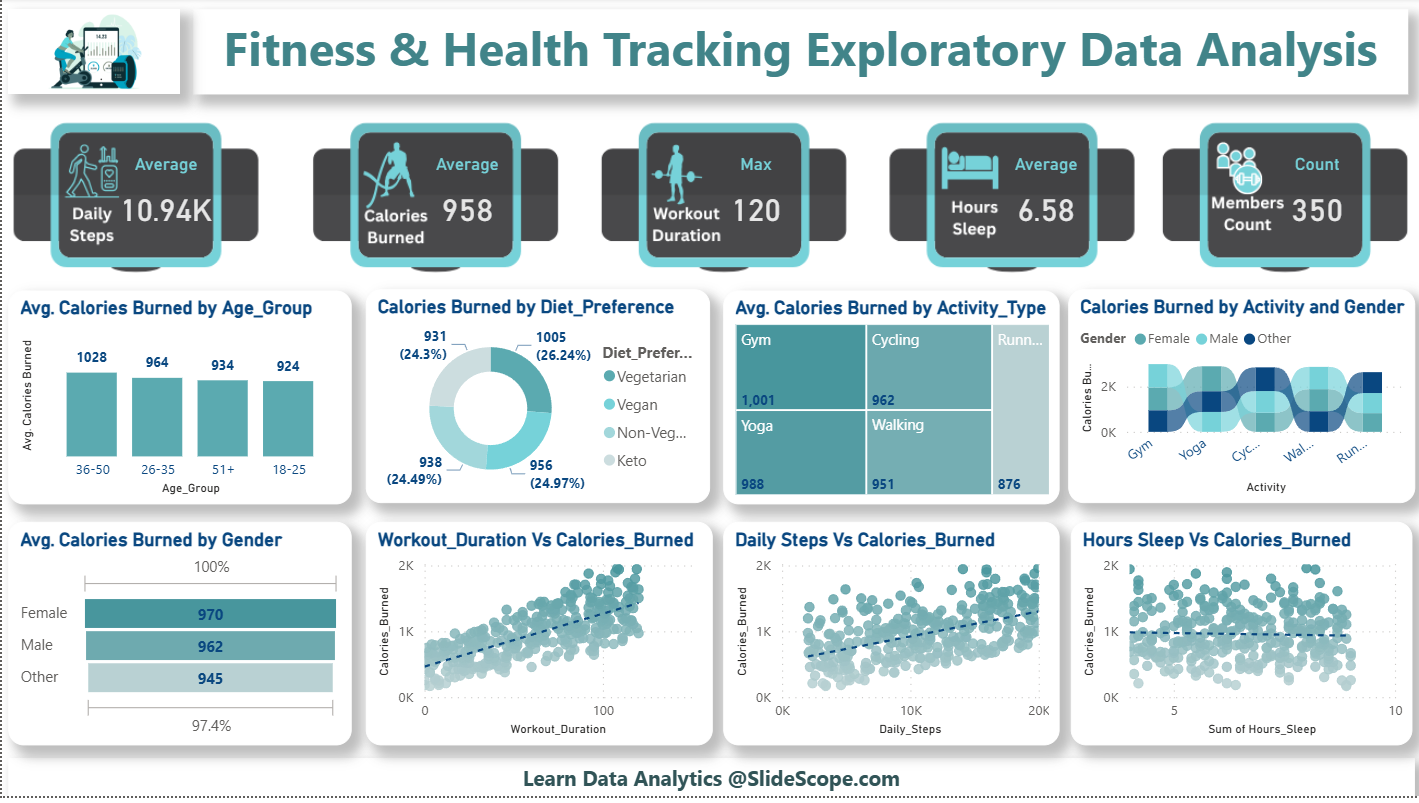
1) What you need before starting
- Power BI Desktop (latest).
- The CSV file (cleaned-ish) — named e.g.
fitness.csv. - Canva account (free works) for KPI watch images/icons.
Dataset Complete Description is Provided here: Click Here
2) Quick data sanity & import (Power BI)
- Open Power BI Desktop → Get Data → Text/CSV → pick
fitness.csv. - In the Power Query preview:
- Set data types:
User_ID→ TextDaily_Steps,Calories_Burned,Workout_Duration→ Whole NumberHours_Sleep→ Decimal NumberActivity_Type, Diet_Preference, Gender, Age_Group→ Text
- Check for and remove obvious bad rows (empty
User_ID, negative values, extremely large outliers like steps > 200k unless valid). - If there are duplicates per user/day and you want member-level KPIs, decide whether to aggregate (but for example dashboard we’ll assume each row = one member record).
- Set data types:
- Click Close & Apply.
3) Data model notes
- This is a single table dataset, so no relationships required. If you later add Date tables or external lookup tables (Activity types metadata), create relationships accordingly.
- Rename the table to
Fitnessin model view (makes DAX friendlier).
4) Core DAX measures (create these in Report view → Modeling → New measure)
Drop these directly into your Power BI file (adjust table name if different):
-- Basic KPIs
TotalSteps = SUM( Fitness[Daily_Steps] )

AvgCaloriesBurned = AVERAGE( Fitness[Calories_Burned] )

MaxWorkoutDuration = MAX( Fitness[Workout_Duration] )

AvgHoursSleep = AVERAGE( Fitness[Hours_Sleep] )

MembersCount = DISTINCTCOUNT( Fitness[User_ID] )

-- Useful supporting measures
AvgCaloriesRounded = ROUND( [AvgCaloriesBurned], 0 )
Formatting tips:
- Format
TotalStepson the visual using Display units (Thousands, show one decimal → e.g.10.9K). - Format
AvgCaloriesBurned,AvgHoursSleepwith appropriate decimal places (0–1).
5) KPI Watch cards with Canva (how I build the top row)
We want those watch-like KPI panels (Daily Steps, Calories, Workout Duration, Hours Sleep, Members Count) like the sample.
Canva steps
- New design → Custom size: e.g. 1200 x 300 px (you’ll export a strip or individual watches).
- Create a rounded rectangle or watch shape, add an icon (Canva icons) left/top, and a placeholder text like
{{KPI}}where dynamic number will go. Use a neutral dark card background and teal accent border (to match your Power BI palette). Use fonts such as Poppins or Montserrat. - Export as PNG. If you want the card background to show through Power BI visuals, export with transparent background and leave inner area transparent for overlaying the dynamic number. (Alternatively export a full background and overlay a transparent card for numbers.)
- Repeat for each KPI watch. Export separate files or one strip image.
Bringing into Power BI
- In Power BI page format: Format pane → Page background → Add image (choose the watch strip PNG). Set Fit or Center, set transparency 0. This places the watches behind visuals so you can overlay card visuals.
- Now add Card visuals (or multi-row cards) on top of each watch where the numeric should appear. Set card background to transparent, border off, font large, align center. Assign each card the DAX measures from Step 4. Display units and text size to match Canva graphics.
If you prefer: insert the watch image normally and place measures above it — but using page background keeps it behind the visuals.
6) Build the main visuals (matching the layout you shared)
Below I map each visualization in your sample to the Power BI visual and settings.
A. Avg. Calories Burned by Age_Group — Clustered column chart
- Axis:
Age_Group - Value:
AvgCaloriesBurned - Formatting: remove gridlines or set subtle ones, data label inside top, rotate x-labels if needed.
B. Calories Burned by Diet_Preference — Donut / Pie chart
- Legend:
Diet_Preference - Value:
MembersCount(or useUser_IDwithDistinctCount) — then show percentages. - Display labels as
%and absolute (both possible). Use the donut center to show overall count.
Alternative: create a donut plus a small card that shows top diet and percent using measure.
C. Avg Calories Burned by Activity_Type — Treemap
- Group:
Activity_Type - Value:
AvgCaloriesBurned - Treemap visually highlights high-calorie activities (Gym, Yoga etc.)
D. Calories Burned by Activity and Gender — Stacked area chart (or 100% stacked area)
- X axis:
Activity_Type(categorical) - Y axis:
Calories_Burned(Sum or Avg depending on need — choose Sum if you want totals, Avg if average per user) - Legend:
Gender - Use Stacked area so each gender appears as a band per activity, similar to the overlap in the sample.
E. Avg. Calories Burned by Gender — Horizontal bar chart
- Axis:
Gender - Value:
AvgCaloriesBurned - Show data labels inside bars.
F. Workout_Duration vs Calories_Burned — Scatter chart
- X:
Workout_Duration - Y:
Calories_Burned - Add Analytics pane → Add trend line (linear) to show correlation. Optionally vary bubble size by
Daily_Steps. Use transparency for markers (marker fill transparency) so overlapping points look like the sample.
G. Daily_Steps vs Calories_Burned — Scatter chart
- X:
Daily_Steps - Y:
Calories_Burned - Trend line again via Analytics. Set marker size small and high transparency for density look.
H. Hours_Sleep vs Calories_Burned — Scatter chart
- X:
Hours_Sleep(sum or average if multiple rows), Y:Calories_Burned, trend line. This gives the cloud of points you see on the right.
7) Formatting & design decisions (to match the polished slide look)
- Color theme: choose teal, dark gray, bone white. Use a theme JSON to enforce colors across charts (paste into Power BI Theme → Switch Theme → Browse for themes). Example JSON snippet:
{
  "name":"Slidescope Teal",
  "dataColors":["#2E9AA8","#3FA7A9","#6FC3C0","#1F6B6D","#9BC6C4","#6E7C7C","#2D4F50"],
  "background":"#ffffff",
  "foreground":"#1f3b3b",
  "tableAccent":"#2E9AA8"
}
- Rounded card look: Power BI shapes do not support corner-radius. Workaround: create rounded rectangle shapes in Canva and set as page background sections, or use images for card backgrounds and then overlay visuals.
- Drop shadows & subtle 3D: in each visual format → Effects → Turn on Shadow (Power BI has shadow options per visual) to create the lifted card effect.
- Fonts: use Poppins/Montserrat for titles and numbers (Power BI Desktop respects report-level font selection).
- Grid layout: set page size to 16:9 or custom matching your exported PNG. Use View → Snap to grid and Show gridlines for neat alignment.
- Tooltips: create a tooltip page (a small report page sized as tooltip) showing extra details (percentiles, median calories, top activities) and assign it to visuals for richer hover.
8) Interactivity and Slicers
- Add slicers for
Gender,Activity_Type,Diet_Preference,Age_Groupat top or as a left-side filter pane. - Sync slicers across pages (View → Sync slicers) if you plan multiple pages.
9) Extra measures you might want (examples)
-- Percent of total members by diet (use in card or tooltip)
TotalMembers = [MembersCount]

MembersByDiet = DISTINCTCOUNT( Fitness[User_ID] ) -- when Diet_Preference is in visual's context

DietPct = DIVIDE( [MembersByDiet], [TotalMembers], 0 )

-- Averages by selected activity
AvgCaloriesByActivity = CALCULATE( [AvgCaloriesBurned], ALLEXCEPT( Fitness, Fitness[Activity_Type] ) )
10) Final polish & export
- Review labels: keep axis labels subtle, data labels visible when helpful.
- Check responsiveness: test filters and slicers — do numbers update as expected?
- Publish to Power BI Service: Home → Publish.
- To share a static image for presentations: File → Export → Export to PDF or use Export to PNG of each page.
- If embedding in a website or LMS, use Power BI Service → Embed options or Publish to web (mind security/privacy).
11) Troubleshooting / tips
- If your Card overlay numbers shift when resizing: use Selection pane and arrange layers (bring visuals forward/back). Lock objects as needed.
- If you need nicer cards with rounded corners and dynamic text in one object, consider a custom visual from AppSource (e.g., “Card with States” or “KPI Card”); otherwise Canva + transparent overlay is the easiest.
- Use
DISTINCTCOUNT(User_ID)when you want member counts and avoid double-counting if the CSV has multiple sessions per user. - Large datasets: pre-aggregate in Power Query or in your source to keep PBIX responsive.
TL;DR (instant checklist)
- Clean CSV in Power Query → set types.
- Build core measures (
TotalSteps, AvgCaloriesBurned, MaxWorkoutDuration, AvgHoursSleep, MembersCount). - Design KPI watch images in Canva, export PNG, set as page background in Power BI.
- Create Card visuals (transparent background) and overlay numbers on the Canva watches.
- Build visuals: Column (Age group), Donut (Diet), Treemap (Activity), Stacked Area (Activity×Gender), Horizontal Bar (Gender), Scatter + trendlines (Workout, Steps, Sleep vs Calories).
- Apply a consistent theme, shadows, fonts, and grid alignment.
- Publish & share.
Compare calorie differences across Activity Types (e.g., Running vs Yoga). In our dataset, we already have:
- Calories_Burned (numerical)
- Workout_Duration (numerical)
- Activity_Type (categorical: Running, Walking, Gym, Yoga, Cycling)
So, “Additional Burn” can be interpreted as Calories Burned per Workout Minute (efficiency of each activity).
✅ Step 1: Create a measure for Avg Burn per Workout Minute
Avg Burn per Workout Minute =
DIVIDE (
    AVERAGE ( Fitness[Calories_Burned] ),
    AVERAGE ( Fitness[Workout_Duration] ),
    0
)
⚡ This tells you: On average, how many calories are burned per minute of workout for a given activity.
✅ Step 2: Compare Across Activity Types
- Put Activity_Type on Axis (Bar/Column chart).
- Use Avg Burn per Workout Minute as Values.
This will show bars for Running, Yoga, Gym, etc. so you can visually compare calorie burn efficiency.
✅ Step 3 (Optional): Calculate Difference Between Running & Yoga Directly
Burn Difference Running vs Yoga =
VAR RunningBurn =
    CALCULATE (
        DIVIDE (
            AVERAGE ( Fitness[Calories_Burned] ),
            AVERAGE ( Fitness[Workout_Duration] ),
            0
        ),
        Fitness[Activity_Type] = "Running"
    )
VAR YogaBurn =
    CALCULATE (
        DIVIDE (
            AVERAGE ( Fitness[Calories_Burned] ),
            AVERAGE ( Fitness[Workout_Duration] ),
            0
        ),
        Fitness[Activity_Type] = "Yoga"
    )
RETURN
RunningBurn - YogaBurn
This will give you the numeric difference in calorie efficiency between Running and Yoga.
Q6: Which country (if extended with location data) shows healthier lifestyle patterns?
Right now, our Fitness & Health Tracking dataset does not include Country, but if we extend it with a Country column, we can define “healthier lifestyle patterns” using a combination of metrics like:
- Higher Average Daily Steps
- Higher Average Workout Duration
- Higher Average Calories Burned
- Higher Average Sleep Hours
✅ Step 1: Add Country Column
Extend the dataset with a new categorical field: Country (e.g., USA, UK, India, Germany, etc.).
✅ Step 2: Create Health Score Measure
We can build a composite index to evaluate countries. For example:
Health Score =
VAR AvgSteps = AVERAGE ( Fitness[Daily_Steps] )
VAR AvgCalories = AVERAGE ( Fitness[Calories_Burned] )
VAR AvgWorkout = AVERAGE ( Fitness[Workout_Duration] )
VAR AvgSleep = AVERAGE ( Fitness[Hours_Sleep] )

RETURN
( AvgSteps / 1000 ) +
( AvgCalories / 500 ) +
( AvgWorkout / 30 ) +
( AvgSleep / 2 )
👉 This normalizes each metric (dividing by a benchmark) and sums them into a single Health Score.
✅ Step 3: Visualize in Power BI
- Place Country on Axis.
- Place Health Score on Values.
- Use a Bar Chart / Map Visual to show which countries score higher.
✅ Step 4 (Optional): Create KPI Cards per Country
You can also add cards for each country showing:
- Avg Daily Steps
- Avg Workout Duration
- Avg Calories Burned
- Avg Hours of Sleep
This helps compare lifestyle components.
Why those numbers in division?
- Steps ÷ 1000 → If average daily steps are around 8,000–10,000, dividing by 1000 scales it to ~8–10.
- Calories ÷ 500 → If average calories burned are 2000–3000, dividing by 500 gives ~4–6.
- Workout Duration ÷ 30 → If average workout duration is ~30–60 minutes, dividing by 30 gives ~1–2.
- Sleep ÷ 2 → If average sleep is 6–8 hours, dividing by 2 gives ~3–4.
How to Add Country Column Sample
🔹 Option 1: Power Query (Recommended – reproducible & cleaner)
- Load your dataset into Power Query.
- Go to Add Column → Custom Column.
- Use this formula to assign one of 5 countries randomly:
let
    Countries = {"USA","India","UK","Germany","Australia"}
in
    Countries{ Number.Mod( Number.RandomBetween(0, 99999), 5 ) }